

Cloud
Overview
The Moneris Go solution offers three unique integration methods to suit your specific setup. Each method delivers the same core payment processing capabilities. It is important to note that you are not locked into an integration method and you can choose a different method at any point. The right integration choice depends on your existing infrastructure and how easily it can integrate with Moneris Go. This section will go through all the integration methods so you can make an informed decision on which integration method to use.
Cloud
The cloud integration enables your POS system to communicate with your Moneris Go device over Moneris’ cloud infrastructure. Transaction requests are sent to Moneris’ cloud from your POS system which are validated and forwarded to your Moneris Go device for fulfillment. This integration method is ideal for distributed systems, omnichannel workflows and web-based POS systems. The key benefits of this method are the enablement of payment flows from remote systems (e.g. web POS, mobile order-ahead) and support for deployment over 4G or outside local networks. This integration method requires a stable internet connection and may introduce latency due to the routing of the transaction data.
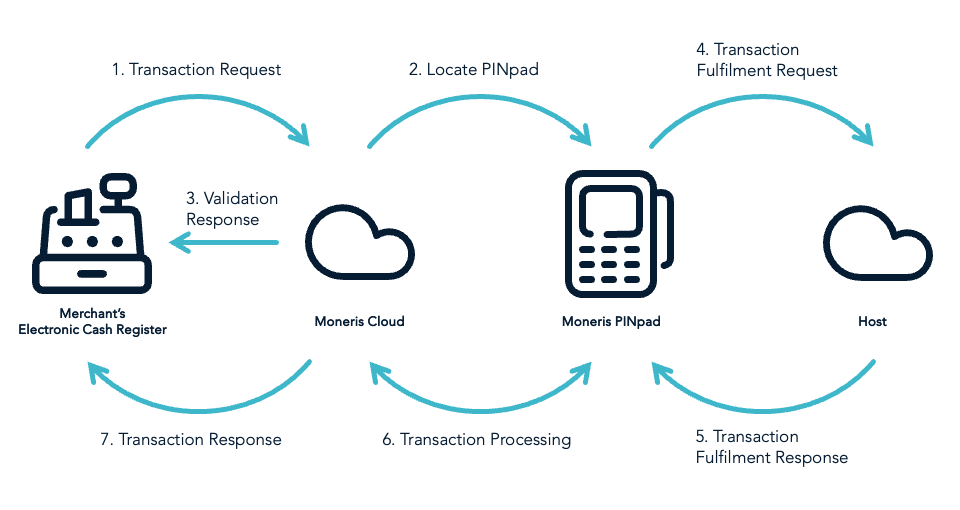
Configuring device to Cloud Mode
Start by setting up your device for the integration mode you’ve chosen. Here’s how to get it ready for cloud mode:
Note
If you are using a Moneris Go (Ivory), Moneris Go (Onyx) or Moneris Go Slim device, you will need to download the Moneris Go Integrated application from the app store.
1. Tap on the Launcher icon on your Moneris Go device’s home screen.
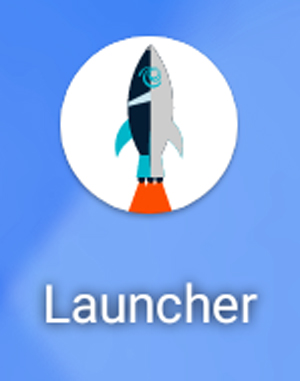
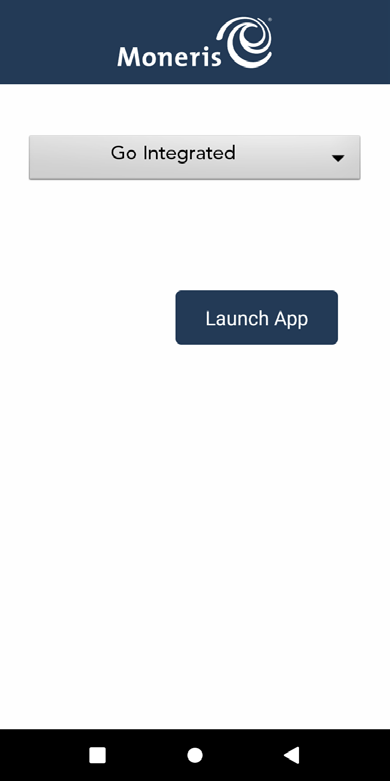
2. Select Go Integrated from the dropdown menu, tap Launch App.
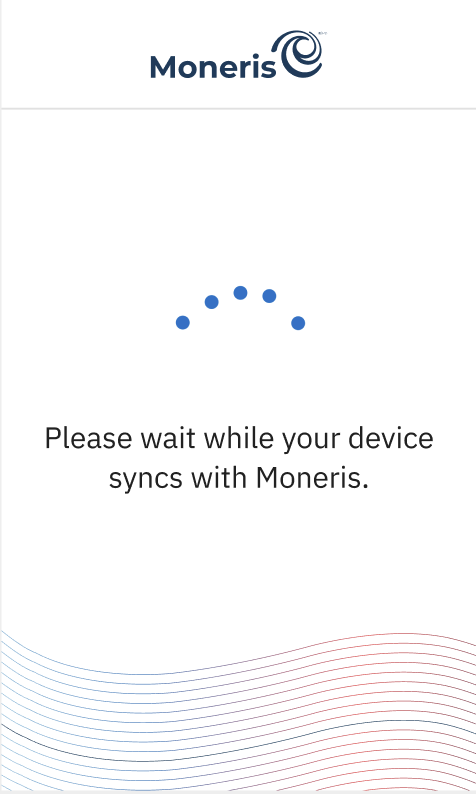
3. Wait while your device syncs with Moneris.
4. Tap Go to begin configuring your Moneris Go Integrated application.
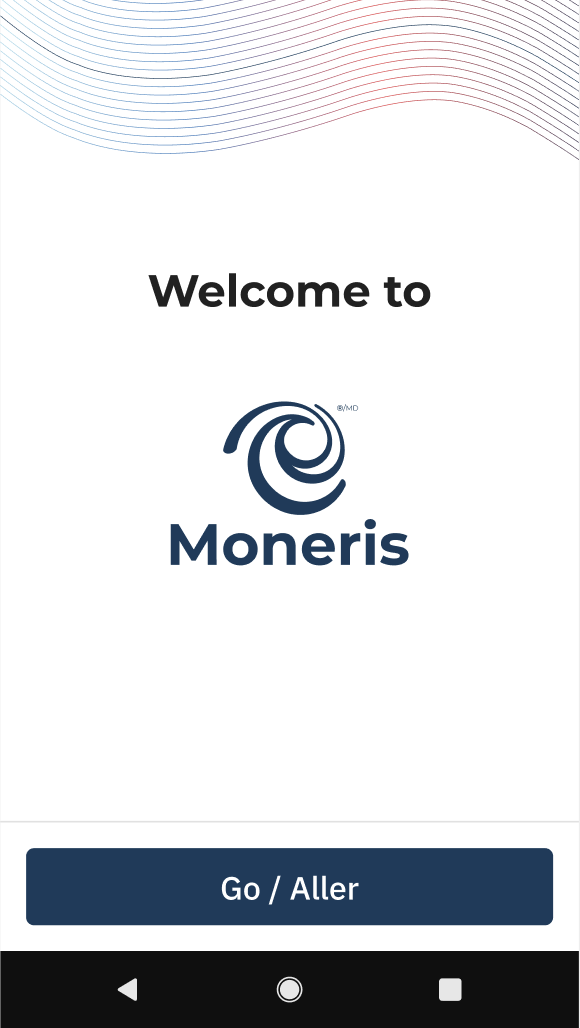
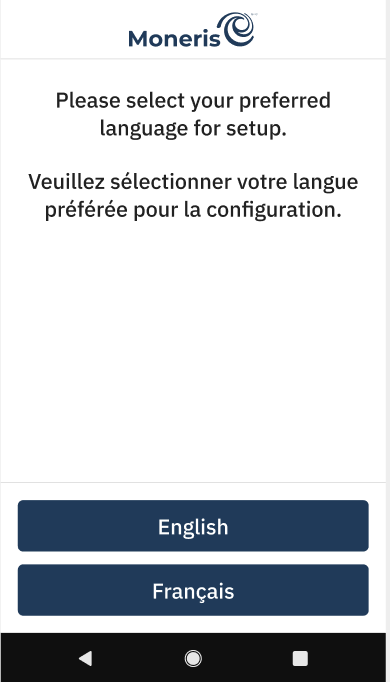
5. Select a language.
NOTE:
This is used to set up the language for the initial integration setup only. This is not the language that will be used for the Moneris Go device.
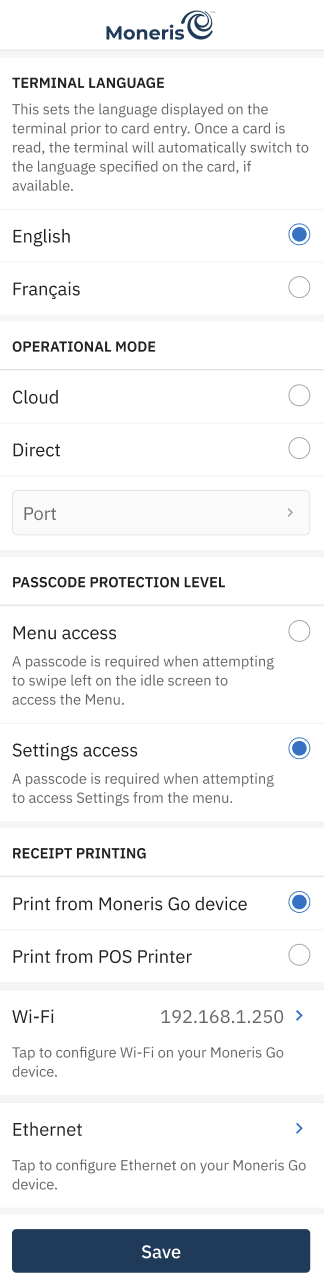
6. On the following Settings screen select:
-
Tap English or Français to select the language for the device to communicate with Moneris.
-
Operational mode: Choose Cloud.
- Note: The default option is blank.
- Note: An error message is displayed if an Operational mode is not selected.
-
Passcode protection level: Choose Settings access or Menu access. Passcode protection level controls whether a passcode is required to open the menu or the settings screen.
- Note: The default option is Settings access.
- Note: If Menu access is selected, you will need to enter a Passcode to exit the application after swiping left on the idle screen.
-
Receipt Printing: Choose Print from Moneris Go device or Print from POS Printer.
- Note: Cardholder choice should be enabled in Receipts settings.
- Print from Moneris Go device will print a physical receipt when the cardholder selects print in receipt options.
- Print from POS Printer will not print a physical receipt when the cardholder selects print in receipt options.
- Note: The Receipt Printing option only appears on devices with on-board printers. The POS will always receive the receipt payload in the transaction response, irrespective of the device.
- Note: Cardholder choice should be enabled in Receipts settings.
-
Wi-Fi: Tap Dynamic or Static IP Address for POS connection.
- Note: You may need to configure these features in the Android setup, then return to this screen to continue.
- Note: If the terminal has an internet connection, the IP Address will be displayed below in green.
-
Ethernet: Tap Dynamic or Static IP Address for POS connection.
- Note: The Ethernet button is only displayed if the device and/or hardware supports Ethernet connectivity.
- Note: If the terminal has an internet connection, the IP Address will be displayed below in green.
Tap Save to continue to the next screen once you are happy with the settings.
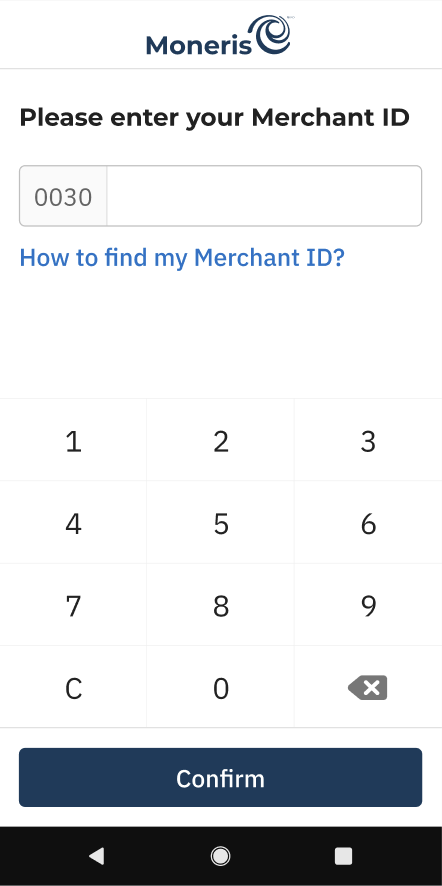
7. Enter the last 9 digits of your 13-digit Merchant ID that was provided to you in your welcome email and tap Confirm.
NOTE: You only have three attempts to enter your Merchant ID.
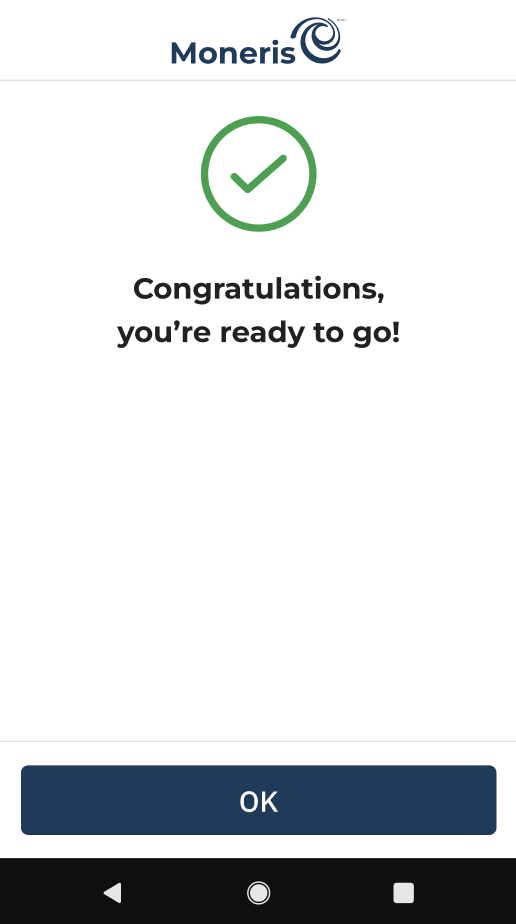
8.Your Moneris Go device is now configured in direct mode. Tap OK to navigate to the idle screen.
Support
Contact Moneris Customer Support if you're facing issues during this process.
Integrating Cloud Method
Additional setup steps are required in order to integrate with the Moneris cloud. Below is the additional information needed to get your solution up and running.
Configuring firewall access
In order to allow for communication between your point of sale (POS) and the Moneris cloud you need to establish inbound and outbound rules on your firewall. Below is a table highlighting the important URLs that need to get whitelisted.
| URL | Environment | IP:Port | Inbound | Outbound |
|---|---|---|---|---|
| https://ippostest.moneris.com/v3/terminal | Testing | 23.249.193.132:443 23.249.201.132:443 | ✓ | ✓ |
| https://ipterm2ct.moneris.io/ | Testing | 23.249.193.133:443 23.249.201.133:443 | × | ✓ |
| https://cloudreceiptct.moneris.com/ | Testing | 3.218.135.213:443 23.249.193.134:443 23.249.201.134:443 | × | ✓ |
| https://ippos.moneris.com/v3/terminal | Production | 23.249.192.132:443 23.249.200.132:443 | ✓ | ✓ |
| https://ipterm2.moneris.io/ | Production | 23.249.192.133:443 23.249.200.133:443 | × | ✓ |
| https://cloudreceipt.moneris.com/ | Production | 34.238.1.58:443 23.249.192.134:443 23.249.200.134:443 | × | ✓ |
Understanding the API requests
The Moneris Cloud handles both requests and responses in JSON format. All of the requests you send will be POST requests to the base URL for the environment you are working in.
The type of functionality that will be executed by your POST request is dependent on the "action" value that you send in the request. To the right is an example of a Purchase request. To view the full list of available requests, visit the API spec at Purchase Endpoint.
- https://ippostest.moneris.com/v3/Terminal/ for Testing environment.
- https://ippos.moneris.com/v3/Terminal/ for Production environment.
{
   "apiVersion": "3.0",
   "apiToken": "example_apiToken",
   "storeId": "example_storeId",
   "istConfigCode": "example_istConfigCode",
   "polling": "true",
   "dataId": "example_dataId",
   "dataTimestamp": "1969-12-31 23:59:59",
   "data": {
      "request": [
         {
            "orderId": "example_orderId",
            "idempotencyKey": "example_idempotencyKey",
            "terminalId": "example_terminalId",
            "username": "example_username",
            "modifier": "example_modifier",
            "linkId": "example_linkId",
            "action": "purchase",
            "totalAmount": "1110"
         }
      ]
   }
}
NOTE:
Moneris recommends that merchants have a one-to-one setup between their Point of Sale (POS) and Moneris Go device. Multiple POSs can connect to the same Moneris Go device, however only one transaction can be processed at a time. The Moneris Go device will respond with a Terminal Busy Error response like the one shown here if you attempt to make a connection while it is processing a transaction.
{
   "receipt": {
      "apiVersion": "3.0",
      "dataId": "1745346531955-001",
      "dateTimestamp": "2025-04-22 18:28:53",
      "data": {
         "response": [
            {
               "idempotencyKey": "b0fa45db-ce8d-4d54-b16d-31c68742f324",
               "cloudTicket": "f8042b6f-f5f9-4867-9417-b20e93f52cd8",
               "completed": "false",
               "action": "purchase",
               "responseCode": "904",
               "statusCode": "5904",
               "status": "Pinpad is Currently Performing Another Transaction"
            }
         ]
      },
      "statusCode": "5904"
   }
}
Understanding the API responses
When a transaction request is sent to the Moneris cloud it will generate two responses that are always sent sequentially.
Validation response
This is the initial response sent back to your POS and is performed synchronously. It performs a validation on the request you send by checking the credentials, locating the Moneris Go device and verifying that the Moneris Go device is available to perform the transaction.
Sample response
{
   "receipt": {
      "apiVersion": "3.0",
      "statusCode": "example_statusCode",
      "dataId": "example_dataId",
      "dataTimestamp": "1969-12-31 23:59:59",
      "data": {
         "response": [
            {
               "idempotencyKey": "example_idempotencyKey",
               "statusCode": "example_statusCode",
               "status": "example_status",
               "cloudTicket": "example_cloudTicket",
               "completed": "false",
               "receiptUrl": "https://cloudreceiptct.moneris.com/receipt/123"
            }
         ]
      }
   }
}
Sample error
If the data sent is invalid or there was an issue with the Moneris Go device then an error response will be sent detailing the type of error.
{
  "receipt": {
"apiVersion": "3.0",
"statusCode": "5460",
"status": "Invalid Parameter",
"dataId": "1745586962401-001",
"dataTimestamp": "2025-04-25 09:16:02",
"data": {
  "response": [
      {
            "orderId": "orA400000717455869623398",
            "idempotencyKey": "ae99e8bc-da72-48f4-b10a-bd2d064b47a7",
            "linkId": "34",
            "statusCode": "5460",
            "status": "Invalid Parameter",
            "completed": "true",
            "errorDetails": [
          {
                "errorCode": "5911",
                "parameter": "data.request[0].totalAmount",
                "value": "5000x",
                "issue": "Invalid Parameter"
          }
            ]
      }
  ]
},
      "TxnName": "Purchase",
      "CloudTicket": "3a7b2ee1-993a-4399-9796-37d2b2f2b8f0",
      "Completed": "true",
      "Error": "true"
   }
}
Transaction response
Once the transaction is complete, the Moneris cloud will asynchronously return the transaction response using your selected delivery method. Below are the two methods you can choose from:
HTTPS polling method
The validation response from a transaction request will return a "receiptUrl" which you can poll against to determine the status of the transaction. If the transaction is incomplete you will get a copy of the initial validation response with "completed": "false". Once the transaction is complete you will receive a transaction response with "completed": "true" and have access to the transaction data.
Note
Set up a polling frequency interval of 2 seconds or more to ensure the Moneris cloud server recognizes your requests as legitimate and avoids mistaking them for a network attack.
HTTPS polling method with postback URL
This is the recommended delivery method as it combines the polling method with a postback URL. The postback URL is a unique URL on your POS that you send in the initial transaction POST request which is then used by Moneris cloud to send back the transaction response once the transaction is complete. The postback URL is sent in the "postBackUrl" field as shown below. This method requires that you have your own DNS with an SSL certificate.
Note
Your postback URL endpoint must respond with an HTTP 200 response code to the GET request.
{
   "apiVersion": "3.0",
   "apiToken": "example_apiToken",
   "storeId": "example_storeId",
   "istConfigCode": "example_istConfigCode",
   "polling": "true",
   "postBackUrl":"https://example.client.url",
   "dataId": "example_dataId",
   "dataTimestamp": "1969-12-31 23:59:59",
   "data": {
      "request": [
         {
            "orderId": "example_orderId",
            "idempotencyKey": "example_idempotencyKey",
            "terminalId": "example_terminalId",
            "username": "example_username",
            "modifier": "example_modifier",

      "completed": "true",
            "linkId": "example_linkId",
            "action": "purchase",
            "totalAmount": "1110"
         }
      ]
   }
}
Updated 5 months ago